
You're getting sales. Some days are better than others. But when someone asks you why last Tuesday was your best day ever, you shrug. You don't know which product page converted, which traffic source sent those buyers, or why they chose to purchase that day instead of any other.
That guessing game is costing you money. Every day you run your store without understanding your data, you're spending ad budget on channels that might not work, ignoring pages that quietly drive revenue, and missing the exact moments shoppers abandon their carts.
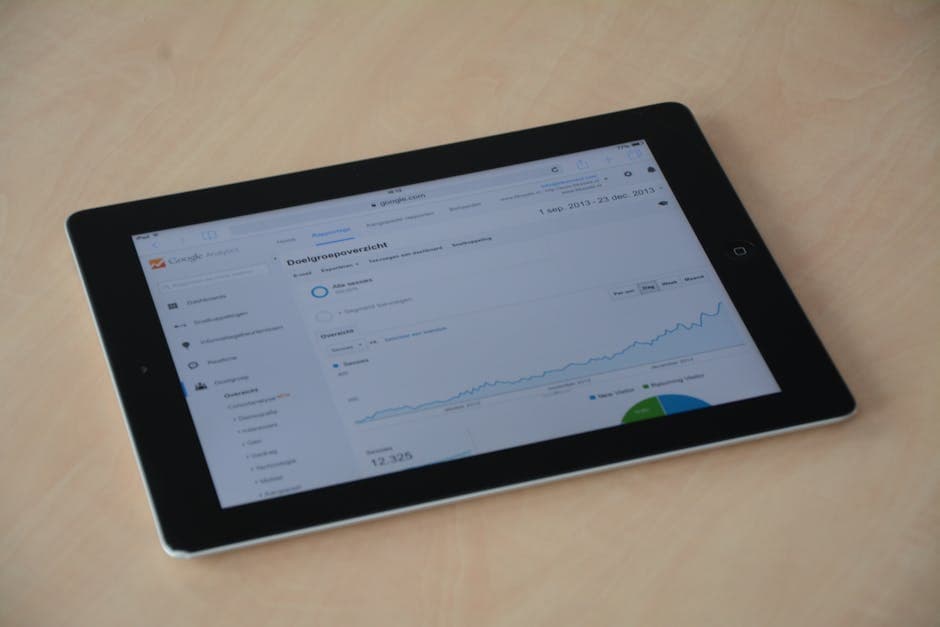
Google Analytics is the free tool that replaces guessing with knowing. Most store owners set it up, glance at the visitor count once or twice, and never dig deeper. That's like installing security cameras and never watching the footage.
This guide covers the specific reports, metrics, and actions that actually move the needle for an online store. No data science degree required.
35%
Shifting ad budget from a low-converting channel to a high-converting one — a decision that takes minutes inside Google Analytics — can increase monthly revenue by 35% or more on the exact same total spend.
Setting Up Google Analytics the Right Way for Ecommerce
Before you can use Google Analytics to grow, you need to make sure it's properly installed and configured for an online store — not just a blog or brochure website. The default setup tracks page views, but it won't automatically track purchases, revenue, or product performance. You need to turn on ecommerce tracking.
- Create a Google Analytics 4 (GA4) property. If you haven't already, go to analytics.google.com, sign in with your Google account, and create a new property for your store. GA4 is the current version of Google Analytics — if you see references to "Universal Analytics," that's the older version that Google has retired.
- Install the tracking code on your store. How you do this depends on your platform. If you're on Shopify, you can paste your GA4 Measurement ID directly into your store's Online Store preferences under "Google Analytics." For WooCommerce, plugins like "Google Analytics for WooCommerce" handle the installation. The key is making sure the tracking code appears on every page, including your checkout and thank-you pages.
- Turn on ecommerce events. In GA4, navigate to Admin → Data Streams → select your stream → then make sure "Enhanced Measurement" is toggled on. For full ecommerce tracking (purchases, add-to-cart actions, checkout steps), your platform integration or plugin needs to send these specific events to GA4. Most modern Shopify themes and WooCommerce plugins handle this automatically, but verify by making a test purchase and checking the "Realtime" report to see if a
purchaseevent appears. - Set up Google Search Console and link it. Search Console (a separate free Google tool) shows you which search queries bring people to your store. Linking it to Google Analytics lets you see organic search data alongside your other traffic data. Go to Admin → Product Links → Search Console Links and follow the prompts.
A quick way to check if everything is working: open your store in one browser tab and GA4's Realtime report in another. Click around your store. You should see your activity reflected in the Realtime report within a few seconds. If you don't, your tracking code isn't installed correctly.
Not sure if your current setup is capturing what it should? Run your site through our free site audit tool — it flags analytics and tracking issues alongside SEO problems.
Verify your setup with the Realtime report
The Five Reports That Actually Matter for Store Owners
GA4 has dozens of reports. Most of them are irrelevant to your daily decisions. Here are the five you should check regularly and exactly what to do with each one.
1. Traffic Acquisition Report
Where to find it: Reports → Acquisition → Traffic Acquisition
This report answers the question: Where are my visitors coming from?
You'll see traffic broken down by channels like Organic Search (people who found you on Google), Paid Search (Google Ads clicks), Social (Facebook, Instagram, TikTok, Pinterest), Direct (people who typed your URL), and Referral (links from other websites).
What to do with it:
- Look at which channel drives the most revenue, not just the most visitors. A channel sending 10,000 visitors who never buy is less valuable than one sending 500 visitors who convert.
- Add the "Session conversion rate" column by clicking the pencil icon to customise the report. This shows you the percentage of sessions from each channel that result in a purchase.
- If organic search is your top revenue channel, that's a signal to invest more in SEO. If paid social is bringing traffic but no sales, you may need to rethink your ad targeting or landing pages.
2. Landing Page Report
Where to find it: Reports → Engagement → Landing Page
This shows which page visitors see first when they arrive at your store. It's different from your most-viewed page — it's specifically about entry points.
What to do with it:
- Sort by sessions to see your most popular entry pages. These are the pages Google, social media, or ads are sending people to.
- Compare the conversion rate of each landing page. If your homepage converts at 2% but a specific product page converts at 6%, consider driving more paid traffic to that high-performing product page instead.
- If a page gets lots of traffic but almost no conversions, it's a leak in your funnel. Visit that page yourself and ask: Is the call-to-action clear? Does the page load quickly? Is the product information compelling?
3. Ecommerce Purchases Report
Where to find it: Reports → Monetisation → Ecommerce Purchases
This is your product-level performance data. It shows which products are viewed, added to cart, and purchased — along with the revenue each product generates.
What to do with it:
- Find products with a high view count but low add-to-cart rate. These products attract interest but something stops people from buying. Common fixes include better product photography, clearer sizing information, or adjusting the price.
- Identify your highest-revenue products and make sure they're prominently featured on your homepage and navigation. Don't bury your best sellers three clicks deep.
4. Checkout Journey Report
Where to find it: Reports → Monetisation → Checkout Journey (or build this as a Funnel Exploration under Explore)
This shows you exactly where people drop off during checkout. For example, you might see that 1,000 people begin checkout but only 300 complete a purchase. Where did the other 700 go?
What to do with it:
- If most drop-offs happen at the shipping information step, your shipping costs might be surprising people. Consider showing estimated shipping earlier in the browsing experience.
- If drop-offs spike at the payment step, you might need more payment options (buy now pay later, PayPal, Apple Pay, etc.).
5. Realtime Report
Where to find it: Reports → Realtime
This shows what's happening on your store right now. It's less about long-term strategy and more about immediate validation.
What to do with it:
- Check this report immediately after launching an email campaign, social media post, or ad. You'll see traffic spike (or not) in real time.
- Use it to verify that new tracking is working after making changes to your site.
Turning Data Into Decisions: A Before-and-After Example
A store selling handmade candles spends £500 per month on Instagram ads and £500 on Google Shopping ads. Sales are steady but the owner doesn't know which channel is actually generating purchases. They split the budget evenly because it "feels right."
After digging into the Traffic Acquisition report: Instagram sends 3,200 visitors per month with a 0.4% purchase conversion rate (about 13 sales). Google Shopping sends 1,100 visitors with a 3.1% conversion rate (about 34 sales). The average order value from Google Shopping is also higher — £42 versus £28 from Instagram.
The action: shift the budget to £250 on Instagram (maintaining brand awareness) and £750 on Google Shopping. Over the next month, total revenue increases by 35% on the same total ad spend. That single decision, driven by one report, paid for itself many times over.
Without the data, that owner is dividing resources based on gut feeling. With it, they're allocating money to what actually works.
Revenue per channel beats traffic per channel
Setting Up Custom Goals to Track What Matters Most
GA4 tracks certain events automatically (page views, scrolls, outbound clicks), but your store has specific actions that signal buying intent. Setting up custom conversions lets you track these moments.
Every store owner should track:
- Purchase completed — usually tracked automatically if ecommerce is configured
- Add to cart — shows buying interest even when a sale doesn't happen
- Email signup — tracks newsletter or discount code opt-ins
- Begin checkout — the critical middle step between browsing and buying
To mark an event as a conversion in GA4:
- Go to Admin → Events
- Find the event you want to track (like
add_to_cart) - Toggle the "Mark as conversion" switch
Once conversions are set up, every report in GA4 can be filtered or sorted by these actions. You stop asking "how many visitors did I get?" and start asking "how many visitors took a step toward purchasing?"
Three Weekly Analytics Habits That Drive Growth
Data only helps if you actually look at it consistently. A simple weekly routine that takes about 20 minutes:
Monday Morning Check-In (10 minutes)
- Open the Traffic Acquisition report and compare this week's numbers to last week. Look for any channel where traffic or conversions shifted significantly (up or down by more than 15%).
- Open the Landing Page report and check whether any pages are underperforming. Flag pages with high traffic but below-average conversion rates for review.
- Glance at the Ecommerce Purchases report to see if your product revenue mix is changing. New trends can appear here before you notice them anywhere else.
Wednesday Ad Review (5 minutes)
If you run paid advertising, compare your ad platform's reported results to what GA4 shows. Ad platforms often take credit for conversions they didn't drive. GA4 gives you a more balanced view because it sees all your traffic sources, not just the paid one.
Friday Planning Note (5 minutes)
Write down one thing the data told you this week and one action you'll take next week because of it. Examples:
- "Blog post about soy candle care is driving organic traffic that converts well → create two more educational posts on related topics"
- "Mobile conversion rate is half of desktop → spend time next week improving mobile product page layout"
This habit of data → insight → action separates stores that grow from stores that stay flat. It also provides you with a record of decisions and their outcomes, so you learn what works for your specific audience over time.
For a deeper look at improving the pages your analytics data identifies as underperforming, check out our guide on ecommerce conversion optimisation.
Avoiding Common Analytics Mistakes
Even with the best intentions, store owners frequently stumble on a few issues:
-
Watching vanity metrics. Total page views and total users look impressive but tell you almost nothing about business health. Always anchor your analysis to revenue, conversion rate, or average order value.
-
Making changes based on one day of data. A single day can be an anomaly. Look at trends over at least two weeks before making significant budget or strategy changes.
-
Ignoring mobile vs. desktop differences. In the Tech Detail report (Reports → Tech → Tech Details), compare conversion rates by device category. Many stores find that 70% of traffic comes from mobile but 70% of revenue comes from desktop. That gap is an opportunity — improving your mobile experience can unlock significant growth.
Don't make decisions on a single day of data
One day of unusual traffic — a mention in a newsletter, a competitor going down — can make a bad channel look great. Look at trends over at least two weeks before moving budget or changing strategy. -
Not filtering out internal traffic. If you and your team browse your own store frequently, you're polluting your data. In GA4, go to Admin → Data Streams → Configure Tag Settings → Define Internal Traffic, and add your IP address so your visits are excluded.
-
Forgetting to track site search. If your store has a search bar, GA4 can track what people search for. This is gold — it tells you exactly what products visitors want. Enable it under Enhanced Measurement settings, and review the search terms report monthly to spot demand you might not be meeting.
Your Next Step: One Action to Take Today
Log into Google Analytics right now and open the Traffic Acquisition report. Add the "Session conversion rate" column. Sort by revenue. Find your top-performing channel and your worst-performing channel. Write both down.
Knowing where your buying customers actually come from gives you a concrete foundation for every marketing decision you make from this point forward. Everything else builds on that.
Key takeaway
You don't need to master every report today. Start with what drives revenue. Let the data guide your next move, and then the one after that.